Setting up the SLC Bridge
Connect your estate or market so your listings update live. Rez it, pick a category, load your units once.
The SLC Bridge is a small in-world object that connects your estate or breedable market to SLCompare. Once it's set up, your available parcels or stalls appear on the site automatically — updated the moment a unit is rented, vacated, or its price changes.
If your estate is already listed from our scraper, the bridge upgrades it to live data: seconds instead of twice a day. You can claim an existing listing during registration rather than creating a duplicate.
Connecting is free.
Before you rez it
Register first at slcompare.com/register. There's no password — we email you a code.
SLC-XXXXXXYour business goes live automatically. The code lasts 7 days, and the terminal location is shown on screen after you register too.
Getting your starter pack
The bridge isn't automatic — ask us for it. Send us a message with subject General once you've registered, and we'll check the registration and deliver the starter pack in-world to the avatar you registered with.
The pack contains the bridge itself and a notecard pointing back to these guides.
Two things that must match
The bridge must be rezzed by the same avatar that registered the business, and that avatar must own the CasperLet rental units on that region.
This is the most common reason setup fails. The bridge only hears units owned by the avatar that rezzed it — so if your rental boxes belong to an alt, a partner or a group, register with that avatar rather than this one. It's much easier to get right at registration than to unpick afterwards.
Where to rez it
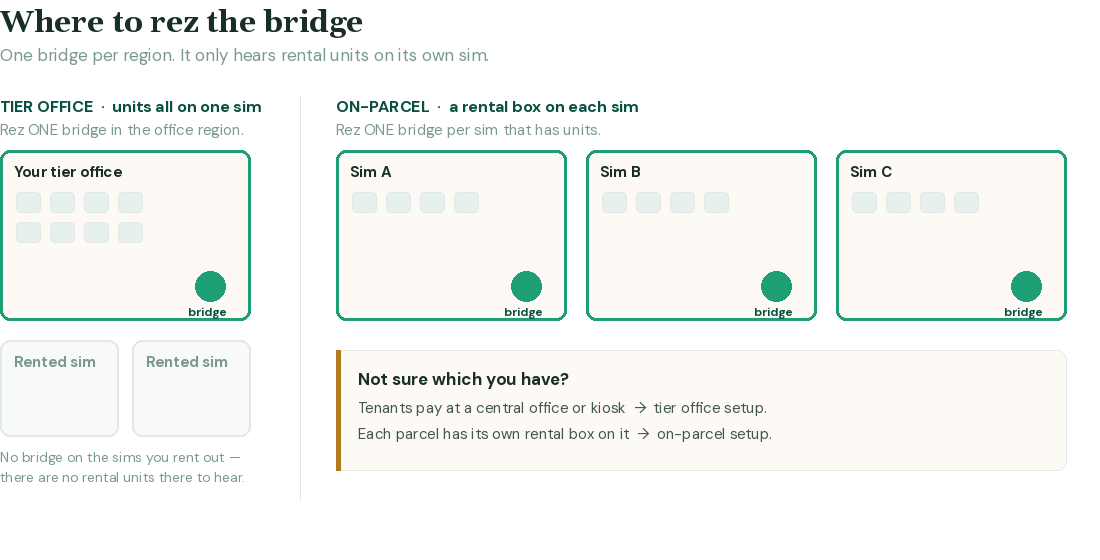
The bridge only hears rental units in its own region. It can't hear other sims.
One bridge per region, and one category per bridge. If you run land rentals and a breedable market, they need separate regions.
Setting up — land
Setting up — breedable markets
Horses · Cats & Dogs · Birds & Poultry · Bunnies · Small Pets · Mythical & Fantasy · Snuffles · PlantPets · DFS / Farm Animals · Fish & Aquatic
Birds & Poultry, Snuffles, PlantPets, DFS and Fish & Aquatic are set automatically. Small Pets has no creator menu.
Stock a creator that isn't listed? Tell us and we'll add it.
Loading your listings
After the bridge connects, load your available units into SLCompare. Only the available ones — don't touch rented units.
For each available unit: touch it → States → Save Available
It reports its price, prims and location, and appears on the site within seconds. Large markets are fine; the bridge works through them one at a time.
Once a unit has been loaded, it looks after itself:
A rented unit reports itself the moment it becomes free again. You never need to touch it again.
Every new unit needs touching once
This is the one thing worth remembering. The bridge only hears a unit when that unit speaks, and a unit speaks when you save it. A rental box you rez after setup is invisible to us until you touch it once — it won't appear on your page, and nothing will tell you it's missing. Your page simply shows fewer than you have.
So whenever you add units — a new row of stalls, a few extra parcels, replacing a box — do the same thing you did at setup: touch it → States → Save Available.
It takes a moment and only ever needs doing once per unit.
Not sure whether you've missed any? Your page only shows what's free to rent, so it will always be shorter than the number of units you own — that's normal, not a fault. Compare your page against your available units, not all of them. If it's still short, the difference is units that have never been saved.
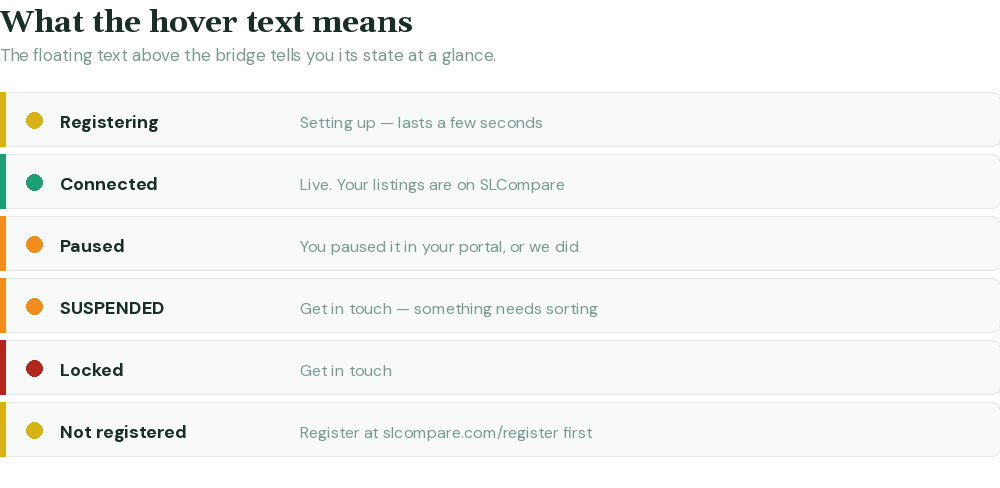
What the hover text means
The touch menu
Only you, the owner, can use it. Anyone else who touches the bridge is told the menu isn't theirs, and nothing opens.
SLCompare support can also open it, so we can look at a problem without talking you through every screen. You get a line in your chat whenever we do — you'll always know. We can't see anything the menu doesn't show you.
Land: Delete listing · Status · Migrate · Reset
Markets: Edit animals · Visitors on/off · Delete listing · Status · Migrate · Reset
Status asks us what we think your bridge's state is, and tells you what comes back.
Migrate transfers your settings to a newer bridge — see updating your bridge.
Reset reconnects the bridge without setting it up again. Your category, animal types, creators, serial and listings are all kept — it simply says hello to us again and starts reporting. Use it if the bridge looks stuck, or if you have moved it. It is quicker and safer than taking the bridge into inventory and rezzing it back.
Taking it back or moving it
Moving it on the same region? Just move it — nothing to do.
Moved it to another region, or something looks stuck? Touch it and choose Reset. It reconnects in a few seconds and keeps everything: your category, animal types, serial and listings. Nothing to answer.
Taken it into inventory and rezzed it again? Land reconnects instantly from your avatar UUID; markets will re-ask animal types and creators, because the script starts fresh. Your listing is unaffected either way — which is why Reset is the easier option when the bridge is still rezzed.
If your available units don't reappear within a few minutes, touch each one again (States → Save Available).
Staying live
The bridge checks in with SLCompare every three hours. If it stops — region offline, bridge taken, script stopped — your listings are hidden until it checks in again, then come back on their own.
On breedable markets it also counts visitors on your parcel every few minutes, so renters can see how busy your market is. See visitors for what that number means and how to turn it off.
When something's wrong
"Not registered" — finish registration and in-world verification, then re-rez.
Green, but a listing is missing — touch that unit → States → Save Available. This is normal for any unit rezzed after setup; see every new unit needs touching once.
Fewer listings on your page than you have available — units added since setup have never reported themselves. Touch each one (States → Save Available) and they appear within seconds. Remember rented units are hidden by design, so your page always shows fewer than you own.
"Connection error" — it retries on its own at the next check-in. If it persists, touch the bridge and choose Reset; if that doesn't clear it, get in touch.
Green, but nothing has updated for a while — touch the bridge and choose Reset. Nothing is lost and it takes a few seconds.
Wrong name or details showing — fix it in your portal.
